
The English Gym 1
Teacher Moodle Guide
Moodle is an online platform for digital homework assignments.
NEW for 2026!


The English Gym Teacher Moodle Guide
This guide explains how to log in to your Moodle teacher account and manage your courses.
このガイドでは、Moodleの教員アカウントへのログイン方法とコース管理の基本について説明します。
Teachers can log in from a mobile device or computer. It is recommended to use a computer when managing grades.
教員はモバイル端末またはコンピューターからログインできます。成績を管理する際は、コンピューターの使用をおすすめします。
A. How to Log In to Your Teacher Account
A. 教員アカウントへのログイン方法
B. How to Manage Your Courses
B. コースの管理方法
A. How to Log In to Your Teacher Account
A. 教員アカウントへのログイン方法
Teachers must first complete the following Google Form.
まず、教員は以下の Googleフォーム に入力してください。
Teacher Registration Form for The English Gym Moodle
https://forms.gle/YRamNArgT73KkYyt7
After the form is submitted, Oak Hills Press will create your Teacher account.
フォーム送信後、Oak Hills Press が教員アカウントを作成します。
You will receive an email notification once your account has been set up.
アカウントが作成されると、メールでお知らせします。
After your Teacher account has been created, please follow the instructions below to log in.
教員アカウントが作成された後、以下の手順に従ってログインしてください。

Step 1: Go to the Oak Hills Press Moodle website
ステップ1:Oak Hills PressのMoodleサイトにアクセス
Open your web browser and go to the Oak Hills Press Moodle page.
ウェブブラウザを開き、Oak Hills PressのMoodleページにアクセスしてください。
Click the Log in button.
Log in ボタンをクリックしてください。


Step 2: Enter your username
ステップ2:ユーザー名を入力
Oak Hills Press has already created a Teacher account for you. All you need to do is log in and change your password. Please follow the instructions below.
Oak Hills Press により、教員アカウントはすでに作成されています。ログインしてパスワードを変更するだけで利用できます。以下の手順に従ってください。
Your Username is the email address you provided.
ユーザー名は、登録時に提供されたメールアドレスです。
Please enter your email address using lowercase letters only.
メールアドレスはすべて小文字で入力してください。
Uppercase letters will not be accepted.
大文字は使用できません。

Step 3: Enter your password
ステップ3:パスワードを入力
Your initial password is:
Changeme
ログイン後、パスワードの変更をおすすめします。
Please complete the reCAPTCHA verification.
reCAPTCHA認証を完了してください。
Then click Log in.
その後、Log in をクリックしてください。

Step 4: Change your password
ステップ4:パスワードを変更
Passwords must be at least 8 characters long.
パスワードは 8文字以上 で設定してください。
Passwords are securely encrypted.
パスワードは 安全に暗号化されています。
Click Continue, and you’ll be brought to the Home page.
Continue をクリックすると、Homeページが表示されます。

Step 5: Go to My courses and select the appropriate course
ステップ5:My courses から該当するコースを選択
Click My courses and select the course you would like to open.
My courses をクリックし、開きたいコースを選択してください。
If you are using TEG I and TEG II, choose the course you want to open.
TEG I と TEG II の両方を使用している場合は、開きたいコースを選択してください。
Some teachers may teach at multiple schools, so please select the appropriate course accordingly.
複数の学校で授業を担当している場合は、該当するコースを選択してください。

B. How to Manage Your Courses
B. コースの管理方法
Open your web browser and go to the Oak Hills Press Moodle page.
ウェブブラウザを開き、Oak Hills PressのMoodleページにアクセスしてください。
Click the Log in button.
Log in ボタンをクリックしてください。
1. Student Enrolment
1. 学生のコース登録
Students will need an enrolment key from their teacher.
学生は、担当の先生から 登録キー(enrolment key) を受け取る必要があります。
After creating an account (see the Student Moodle Guide), students should search for the teacher’s course.
アカウントを作成した後(Student Moodle Guide を参照)、担当教員のコースを検索します。
Student Steps
学生の手順
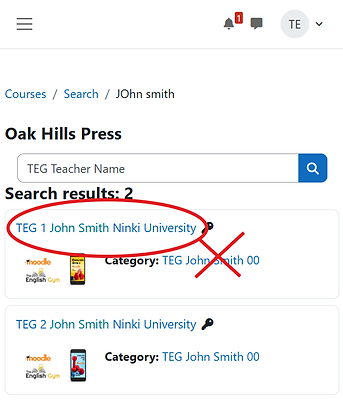
Type TEG followed by the teacher’s name in the search box.
検索ボックスに TEG の後に先生の名前 を入力します。
Example / 例
TEG John Smith
Click the course name in the search results.
検索結果からコース名をクリックします。
Students will see the courses available from the teacher.
先生が担当しているコースの一覧が表示されます。
Choose the course for your class.
Usually this will be:
-
The English Gym 1 (yellow book)
-
The English Gym 2 (blue book)
通常は以下のどちらかです。
-
The English Gym 1(黄色の教科書)
-
The English Gym 2(青色の教科書)
Click the course name to enter the course.
コース名をクリックしてコースに入ります。
Enter the enrolment key provided by your teacher.
先生から案内された 登録キー(enrolment key) を入力します。
Enrolment key examples:
登録キーの例:
MON1XX、TUE1XX、SAT6XX
Most enrolment keys follow the same pattern: DAY, period number, teacher's initials.
ほとんどの登録キーは、曜日(DAY)+時限番号+教員のイニシャル の形式になっています。
So if your class is on Thursday, 4th period, John Smith as the teacher, the enrolment key is THU4JS.
たとえば、木曜日の 4限 で、担当教員が John Smith の場合、登録キーは THU4JS です。
Always check with the teacher for the exact enrolment key.
正確な登録キーについては、必ず担当の先生に確認してください。
Students click Enrol me.
学生は Enrol me をクリックします。

Teacher Note
教員向け補足
Edit Participant Enrolment
参加者の登録情報を編集
If a student has entered the wrong day or period, teachers can edit the information in the Participants page.
学生が 間違った曜日や時限(DAY / PERIOD) で登録している場合、Participants ページで修正することができます。

2. Manage Participants (Students)
2. 参加者(学生)の管理
Students and teachers should refer to the The English Gym 1 and 2 Student Moodle Guide for the student onboarding process.
学生の登録手順については、The English Gym 1 および 2 Student Moodle Guide を参照してください。
Click Participants to see who has enroled in your course.
Participants をクリックすると、コースに登録している学生を確認できます。
Here you can see the students, teachers, and administrators enrolled in the course.
ここでは、コースに登録している 学生、教員、および管理者 を確認できます。

3. View Grades
3. 成績の確認
It is usually most useful to view Total grades.
通常は、**Total grades(合計点)**を表示するのが最も便利です。
Click Grades, select the three dots next to the course name, and choose Show totals only.
Grades をクリックし、コース名の横にある 三点メニュー(⋯) を選択して、Show totals only をクリックしてください。

Teachers with multiple classes using the same course may want to Select separate groups to view the class DAY/PERIOD (for example, FRI1).
同じコースで複数のクラスを担当している教員は、Separate groups を選択すると、クラスの 曜日・時限(例:FRI1) を表示できます。

Teachers can sort the list by Name, Email, or Total score in ascending or descending order.
教員は、Name、Email、または Total score を 昇順または降順で並び替えることができます。

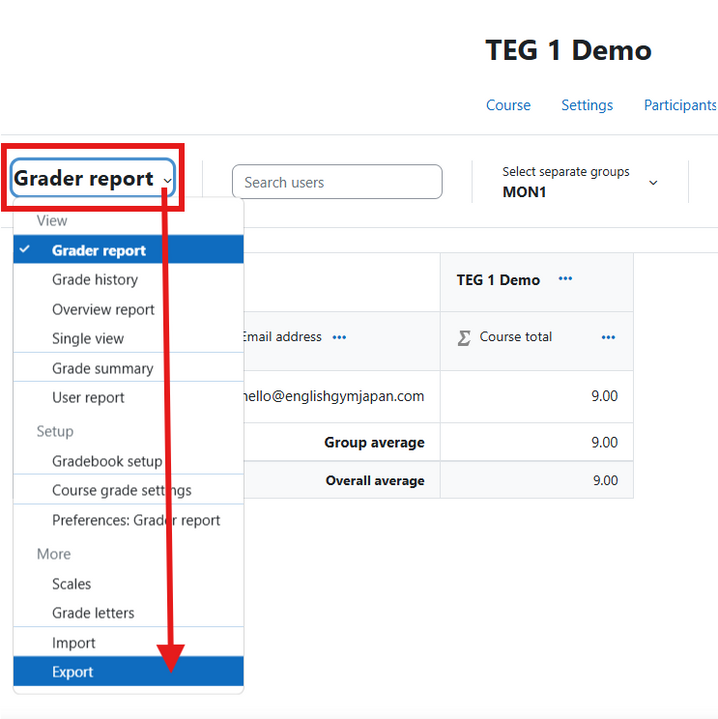
Teachers can download all grades into a spreadsheet by selecting Grader report and scrolling down to Export.
Grader report を選択し、ページ下部の Export をクリックすると、すべての成績をスプレッドシートとしてダウンロードできます。
*If the student’s email address is different from their student ID, it is strongly recommended that students add their student ID to their profile. Having the student ID will be useful when exporting to a spreadsheet. Please refer to the Student Moodle Guide (Part A, Step 14) and have students follow the instructions there.
※学生のメールアドレスが学籍番号と異なる場合は、プロフィールに学籍番号を追加することを強くおすすめします。学籍番号が登録されていると、成績をスプレッドシートにエクスポートする際に便利です。Student Moodle Guide(Part A, Step 14)を参照し、学生にその手順に従うよう案内してください。
4. Course Overview
4. コース概要
Teachers can see all assignments in the course by clicking the Course tab.
Course タブをクリックすると、コース内のすべての課題を確認できます。
Both The English Gym 1 and The English Gym 2 contain 100 assignments in total.
The English Gym 1 と The English Gym 2 には、それぞれ 合計100の課題があります。
Each unit contains five assignments.
各ユニットには 5つの課題 があります。
The assignments are slightly different between TEG 1 and TEG 2.
課題の内容は TEG 1 と TEG 2 で少し異なります。
Each assignment is worth 10 points.
各課題は 10点 です。
Therefore, each unit has a total of 50 points.
そのため、各ユニットの合計は 50点 になります。
If a student receives full marks on all assignments, they can earn 1,000 points in total.
すべての課題で満点を取った場合、合計 1,000点 になります。
Usually, only half of the textbook is assigned during one semester.
通常、1学期では 教科書の半分程度 を使用します。
Therefore, the total score for the semester is usually about 500 points.
そのため、学期の合計点は通常 約500点 になります。

5. Hiding Units
5. ユニットを非表示にする
Teachers may want to hide certain units so that students cannot access or complete them.
教員は、学生がアクセスしたり課題を提出したりできないように、特定のユニットを非表示にすることができます。
For example, a teacher may want to hide Units 11–20 until the fall semester begins.
例えば、秋学期が始まるまでユニット11〜20を非表示にすることができます。
To hide a unit:
Turn Edit mode to ON.
Edit mode を ON にします。
Click the three dots next to the unit or assignment.
ユニットまたは課題の横にある 三点メニュー(⋯) をクリックします。
Select Hide.
Hide を選択します。
The unit or assignment will no longer be visible to students.
すると、そのユニットまたは課題は 学生には表示されなくなります。

6. Assignment Types and Automatic Scoring
6. 課題の種類と自動採点
All assignments in the course are quiz-type assignments.
このコースのすべての課題は クイズ形式 です。
The Vocabulary, Listening Summaries, Vocabulary Listening Q&A, and Quizzes are automatically scored by Moodle.
Vocabulary、Listening Summaries、Vocabulary Listening Q&A、Quizzes は、Moodleによって 自動採点 されます。
Generally speaking, teachers do not need to manage or grade these results manually.
通常、教員が 手動で採点や結果管理を行う必要はありません。
Teachers can preview assignments by selecting the assignment and clicking Preview quiz.
教員は、課題を選択して Preview quiz をクリックすると、内容を確認することができます

For more details about each assignment type, please refer to the Student Moodle Guide.
各課題の詳細については、**Student Moodle Guide(学生用Moodleガイド)**を参照してください。
7. Checking Speaking and Writing Assignments
7. Speaking課題とWriting課題の確認
It is recommended that teachers occasionally check the TEG 1 & TEG 2 Speaking assignments and the TEG 2 Writing assignment.
教員は、TEG 1・TEG 2 の Speaking 課題および TEG 2 の Writing 課題を、時々確認することをおすすめします。
For the Speaking assignments, students are required to type at least 50 words and then record their voices.
Speaking課題では、学生は 50語以上を入力し、その後に自分の声を録音する必要があります。
For the Writing assignment, students are required to write at least 50 words.
Writing課題では、学生は 50語以上を書く必要があります。
Most students will complete the assignments properly. However, some students may type nonsense words or record silence.
ほとんどの学生は正しく課題を提出しますが、まれに 意味のない単語を入力したり、無音を録音したりする学生がいる場合があります。
For this reason, teachers are encouraged to check these assignments occasionally, especially at the beginning of the semester.
そのため、特に 学期の初めには、これらの課題を 時々確認することをおすすめします。
To check student responses:
1. Click the Assignment.
Assignment をクリックします。
2. Select the Results tab.
Results タブを選択します。
3. In the Grades dropdown menu, select Responses.
Grades のドロップダウンメニューから Responses を選択します。


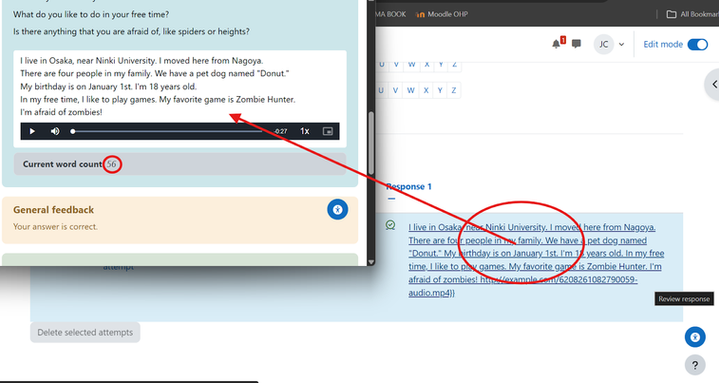
Teachers can click on any response to see the word count and listen to the recording.
教員は、任意の回答をクリックすると、語数を確認し、録音された音声を聞くことができます。
If there are nonsense answers, teachers can click Make comment or override mark.
意味のない回答がある場合、教員は Make comment をクリックしてコメントを追加したり、Override the mark を選択して点数を変更することができます。

Teachers can then make a comment, change the mark, and save.
教員は、コメントを追加し、点数を変更して保存することができます。

It is recommended that teachers inform the student verbally or by sending a message.
教員は、口頭またはメッセージで学生に知らせることをおすすめします。
To send a message to a student:
-
Click the student’s name.
学生の名前をクリックします。
-
Click the message icon.
メッセージアイコンをクリックします。
Type and send your message.
メッセージを入力して送信します。

The message will appear in the student’s messaging drawer in their Moodle interface.
送信されたメッセージは、学生のMoodle画面にある メッセージドロワー に表示されます。

Students can also see the comments and revised grade in their Grades review.
学生は、Grades review で コメントと修正された点数 を確認することもできます。
8. Deleting All Grades at the End of the Semester
8. 学期終了後にすべての成績を削除する
Many teachers will want to delete all Spring semester grades before starting the Fall semester.
多くの教員は、秋学期を始める前に春学期の成績をすべて削除したいと考えるでしょう。
It is highly recommended to download all grades before deleting them.
削除する前に、すべての成績をダウンロードしておくことを強くおすすめします。
To delete all grades, go to More, then select Course reuse from the dropdown menu.
すべての成績を削除するには、More をクリックし、ドロップダウンメニューから Course reuse を選択してください。

Then click Reset.
その後、Reset をクリックします。

VERY IMPORTANT: Do NOT click “Reset course” yet.
非常に重要です。「Reset course」はまだクリックしないでください。

Under the heading Roles → Unenrol users, make sure No roles is selected.
Roles → Unenrol users の項目では、No roles が選択されていることを確認してください。
By default, Student is selected.
初期設定では Student が選択されています。
If you reset the course with Student selected, all students will be unenroled from the course.
Student が選択されたままコースをリセットすると、すべての学生がコースから登録解除されます。
Students can enrol again if necessary, but in most cases you will want students to remain enroled for the fall semester.
必要であれば学生は再登録できますが、通常は 秋学期のために学生を登録したままにしておくことをおすすめします。

Under the heading Gradebook, check the Delete - All grades box.
Gradebook の項目で、Delete - All grades のチェックボックスを選択してください。

Under the heading Quizzes, check all Delete boxes (quiz attempts, user overrides, and group overrides).
Quizzes の項目で、Delete のチェックボックス(quiz attempts、user overrides、group overrides)をすべて選択してください。

All other boxes should remain unchecked.
その他のチェックボックスは すべてチェックしないまま にしてください。
Finally, click Reset course.
最後に Reset course をクリックしてください。

When starting the fall semester, remember to hide any units or assignments you do not want students to complete.
秋学期を開始する際には、学生に取り組ませたくないユニットや課題を非表示にすることを忘れないでください。
9. End-of-Year Reset
9. 年度終了時のリセット
At the end of the academic year, teachers should download all grade data.
年度の終わりには、すべての成績データをダウンロードしてください。
In addition to clearing the grade data, teachers will also want to delete all student enrolments.
成績データを削除するだけでなく、教員は学生の登録もすべて削除する必要があります。
Teachers will usually want to start the new academic year with a clean course.
多くの場合、教員は 新しい年度をクリーンなコース状態で開始したいと考えるでしょう。
Follow the same procedures described above in Step 8, with one exception.
ステップ8で説明した手順と同じ操作を行いますが、1つだけ違いがあります。
Under the Roles heading, select Unenrol users → Student.
Roles の項目で、Unenrol users → Student を選択してください。

10. Support and Questions
10. サポートとお問い合わせ
The English Gym Moodle has been designed so that the entire process, from onboarding students to managing grades, is as smooth as possible.
English Gym Moodle は、学生の登録から成績管理までの一連の流れができるだけスムーズになるように設計されています。
That being said, teachers may still have questions, especially when first using the system.
ただし、特に初めてシステムを使用する際には疑問が生じることもあるかもしれません。
If you have any questions, please feel free to contact us at:
ご不明な点がありましたら、お気軽にお問い合わせください。
